I was thinking to do a redesign of it after their official release, and now I finally did the redesign after playing around with it for some time to understand most, if not all, of the features in the app. Below shots are my redesigned µTorrent app (5 shots):
My redesigned µTorrent app has a pure Android Design and Holo themed with the heavy use of its’ brand color. It make full use of the notification center of Jelly Bean which allows quick actions and individual torrent control (Resume, Pause, Stop) is possible in the main screen.
What do you think of my redesigned µTorrent? Feel free to let me know 🙂
After publishing the 1st Android UI/UX Tips, it seems that I am able to find more UI/UX mistakes in various apps (perhaps I become ultra-sensitive now?), so here it is, Android UI/UX Tips #2 to inspire Android Designers/Developers in developing app with awesome UI and UX.
Don’t Make it Hard for The User
If your app have some awesome features that simplify user interaction, think thoroughly when to/not to remove it from your app.
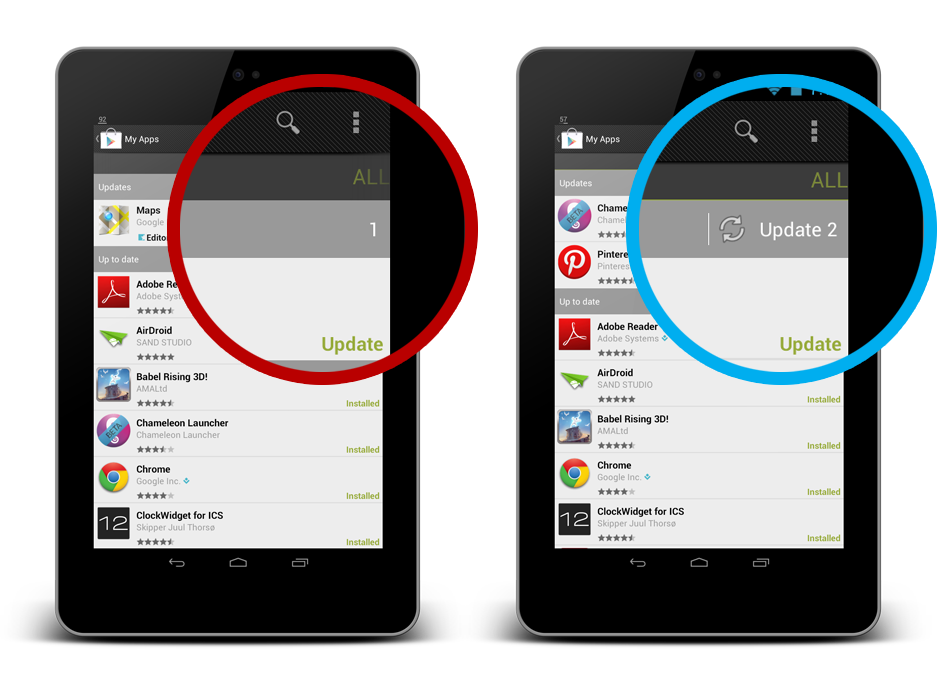
One example that I would like to show is the Update button in Play Store app. When there are more than one apps require update, the Update button is very useful. Updating all the apps will only take one touch. But, when there is only one app having update, the Update button mysteriously disappeared. The problem is, now to update that particular one app, three touches are required (Select the app > Click Update > Click Accept & Download). I personally do not see any use case requires such interaction design – if you can do the same for multiple items, you should be able to do it for a single item.
Consistent with Android Design
In Google Drive app, most of the dialog in the app are using the basic button, which looks really ugly and inconsistent with Android Design. The buttons in default dialog in Android should be (I am not sure) already using the borderless buttons, so I am just feel like asking the Google Drive developers:
Why make the dialog looks like a Microsoft Windows dialog?
No Double Up Combo, Please
Astro File Manager has a new update with refreshed UI, and it comes with a double Up combo! As I mentioned in my Google+ post, it is definitely unnecessary and downright ugly. Just use the app icon for better identity establishment. Perhaps the app designer want to help enhancing the Up affordance?
Consistent with Icon for User Interaction
Again, it’s Google Drive. In the Detail View of a file/folder, you can see there is a Done button (Tick icon) in the Action Bar, and a Cross icon near the file name. You might think that the Cross icon is meant for the file/folder itself, perhaps for deletion or discarding changes? Nope. It behaves exactly the same as the Done button, and this is really a confusing design. In Android, the Cross icon usually meant remove, discard, or cancel. This is not Microsoft Windows. Just stick with the Done button at the Action Bar and it will be just nice.
That’s all for Android UI/UX Tips #2! Hope it is inspiring!
Realizing that it is almost impossible to write a post for each of the UI/UX tips that I have in mind (except those worth a discussion), I have decided to occasionally come out with Android UI/UX Tips.
So in the 1st Android UI/UX Tips, I will look into some official Android apps by Google (Google+, Google Drive, Email), as well as TED app, and talk about some UI/UX mistakes in them and their possible UI/UX improvements.
Avoid Using Confusing/Inappropriate Color
Color, especially when it is related to interface elements, is an important factor in designing great UX. When it is used correctly, it can provide immediate feedback or information to the user and create confidence in user interaction.
Google+ Send Button
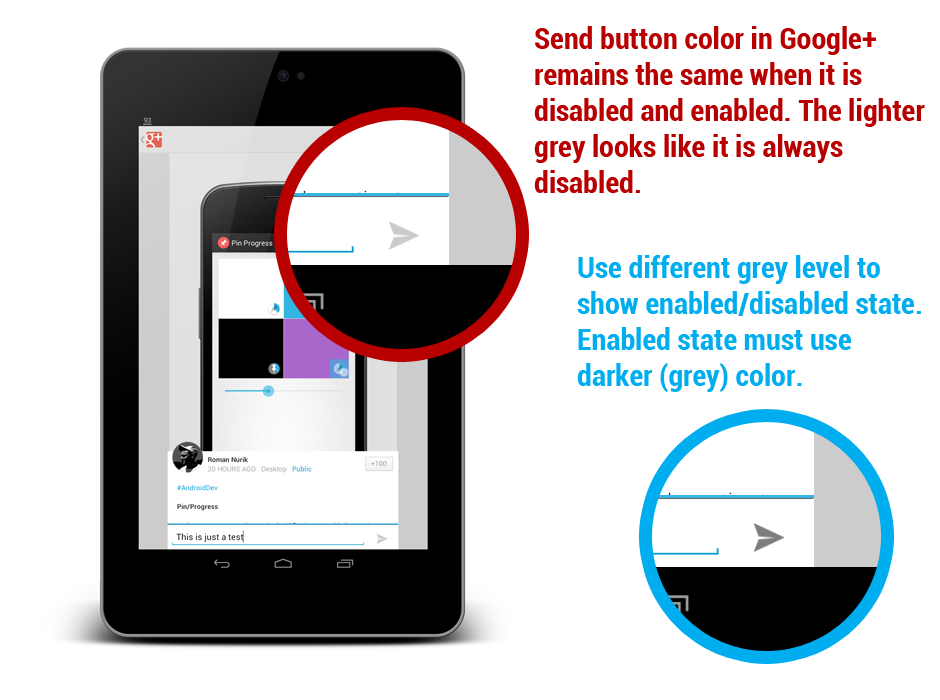
I am not sure if it is a bug, but the Send button in Google+ app doesn’t change color (or the grey level) to indicate the button state. This is definitely one bad UX example. Due to the nature of touch interface (there is not mouse over or tooltip), users will have to rely on the visual clue for the state of user interface element. Change the color of the Send button to a darker grey when there is some text entry should already solve the confusion.
Action Bar Icons in TED App
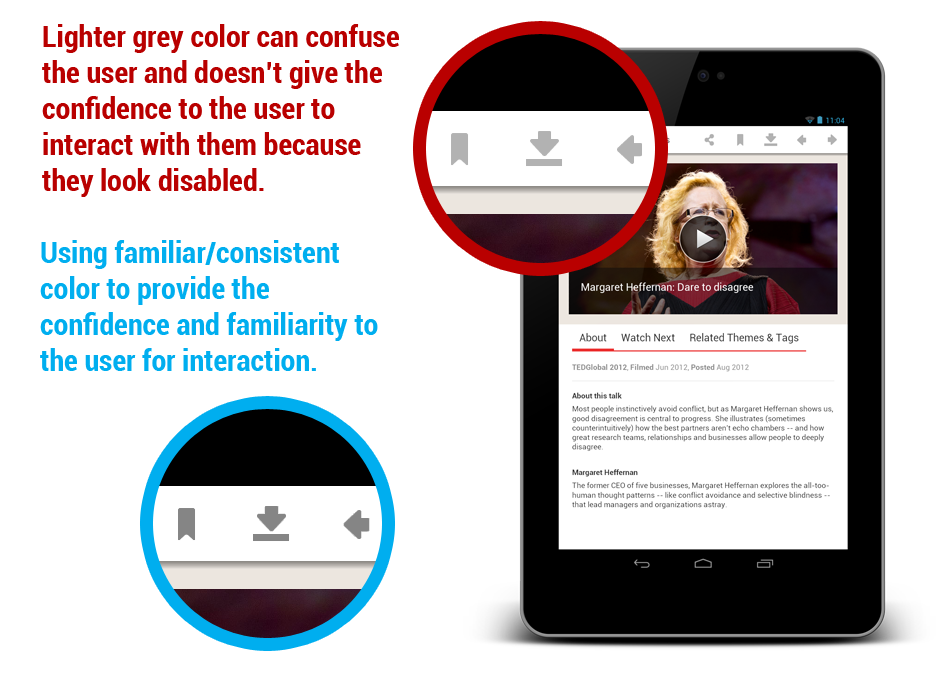
The Action Bar icons in TED app are designed well for their action (although they seem to be a little bit ‘fatter’), but they have an inappropriate grey color – they looked too much like disabled buttons, or in other words, the grey color is very unfamiliar. Sure, you can argue that the color choice is due to the pure white Action Bar in the app, but the app doesn’t use the suggested Action Bar icon color for light theme. Using the color scheme meant for Holo Light (#333333, 60% Opacity), they will definitely give more confidence and familiarity to the user, as well as consistent with Android Design Guideline on Iconography.
Deleting Message in Google Drive
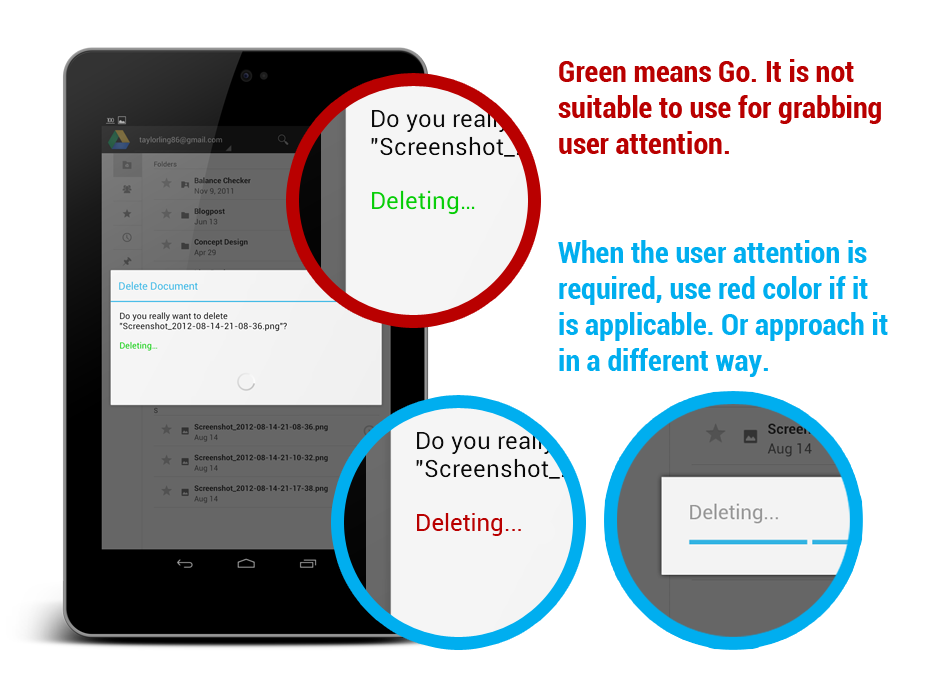
Even though Google Drive is a pretty unpolished app, I still would like use it as an example. In Google Drive app, when you confirm a file deletion, the Deleting… wording is in a welcoming green color. For this case, I would prefer not to ignore the language of color. Every color has their own associated meaning – Red means Stop/Attention, Green means Go, Orange indicates Warm and Blue indicates Cool. Therefore, it probably make more sense if the message is in red color to grab the user attention about the file deletion. It will be even better if those dialogs in Google Drive get a revision.
Avoid Unnecessary (And Ugly) Navigation
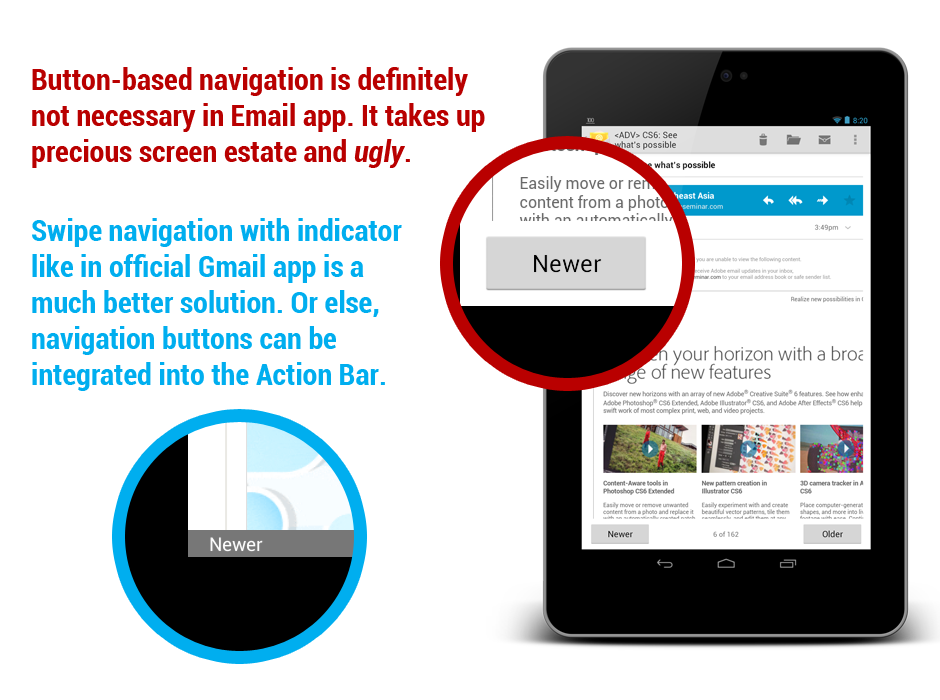
Navigation, one of the most important part of touch interaction, can cause serious user frustration if it’s not done right. Fortunately with the official Android Design Guideline for Navigation, it should not be a difficult task to do it right. But if you want to know how to do it wrong? Check out the stock Email app.
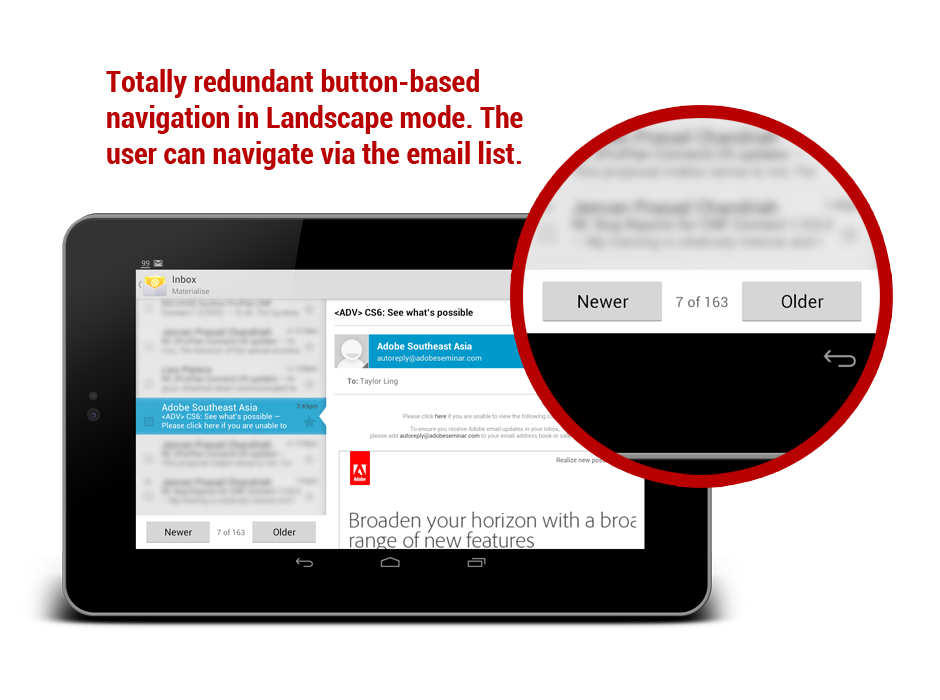
It’s a surprise to see the stock Email app doesn’t have that swipe navigation system found in official Gmail app. In the stock Email app, a button-based navigation is used in Detail Views. It does not only take up some precious screen estate, but it is also destroying the aesthetic of the app, especially in Landscape mode. Swipe navigation and the thin indicator in Gmail app is already a much better solution for this. Otherwise, integrating the navigation buttons into the Action Bar is also a feasible solution (Just to be fair, the Phone version of Email app does have the navigation buttons integrated in Action Bar, and I am not sure why it doesn’t do the same on Tablet version).
Hope these tips help in crafting awesome app with great UI/UX elements. More tips coming in the very near future (if I have any)!
Heavily inspired by Sebastian Tibichi’s Google Play Icon Template, this Action Bar Icon Design Photoshop Template is made for Android App Designers/Developers in designing and generating Action Bar Icon in different dpi. While there is already an awesome online Action Bar and Tab Icon Generator in Android Asset Studio, Action Bar Icon Design Photoshop Template goes a little bit further – It can preview your designed Action Bar icon in properly sized Action Bar (which is customizable), and it can be used offline.
How to use?
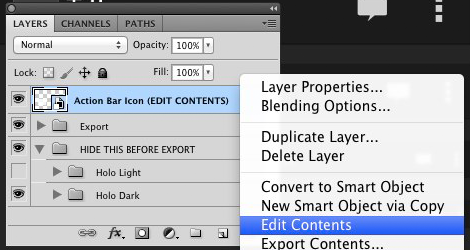
1. Edit the Action Bar Icon Smart Object set at 512×512. Design the icon. Save the smart object. Remember to set the following properties for the icon based on the Holo theme:
Holo Light – Icon Color: #333333 and 60% opacity
Holo Dark – Icon Color: #FFFFFF and 80% opacity
2. Check all the icons generated for different dpi. If everything looks OK, hide the folder HIDE THIS BEFORE EXPORT before export.
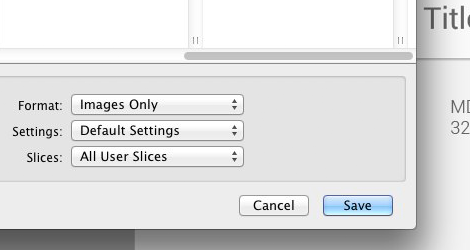
3. Use the option Save for Web & Devices. For the dropdown option Slices, select All User Slices. Save to the preferred directory. 4 images at different resolution for different dpi (64×64, 48×48, 32×32, 24×24) will be generated.
Feel free to use it and share this to any awesome Android app designers/developers! Don’t hesitate to leave a comment here if you have anything in mind!
A few weeks back, I came across the StandOut Android library from my Google+ stream that helps developers in implementing the floating app (something like the Pop up play in Samsung Galaxy S3). It looks interesting at first, but not so much after playing around with it from the user perspective.
Multitasking with floating app?
Floating apps are fun, and the implementation does open up some new possibilities in app design and it does show that true multitasking (not to confuse with the recent app switching function) is possible in Android.
However, it doesn’t make much sense to have such feature on smaller screen devices (eg. Phone). Take the Pop-up Play feature on the Samsung Galaxy S3 as an example, I don’t really see how it can help in multitasking, in fact, it has the potential to create annoyance to the user when it is used – the user have to move it around just to see/perform any action below the pop-up window. Check the video I attached below and you can get what I meant:
Another thing that is really worrying is the inconsistency of UX introduced by these floating apps, even if they are running on the bigger screen devices. It can become even worse when you can resize and move them around in an environment that is designed to run a single app at a time. Not to mention the ugliness it can introduce if there isn’t any proper design guideline. I don’t need another Windows.
Does it really make you a better multitask-er when you have four or five window floating around on a mobile device? When you need a second parallel running app alongside the current one, most probably you would want to do a cross reference on documents, or chatting with friends while watching football match, or attach a file into an email, which most of them involved only two activities at once.
Therefore in my opinion, to do a proper multitasking (on a tablet only, of course), it has to be a system level feature, and it should at most, involved only two activities at a time.
Multitasking in Android
Samsung Mini apps
Samsung tablets already have several in-house apps allowing the user to multitask, which they called them Mini Apps. Similar to the pop-up play, I don’t particularly like them – They usually have limited functionality (that’s why they are called Mini Apps) and they are more like a hack rather than a properly designed multitasking feature.
Cornerstone
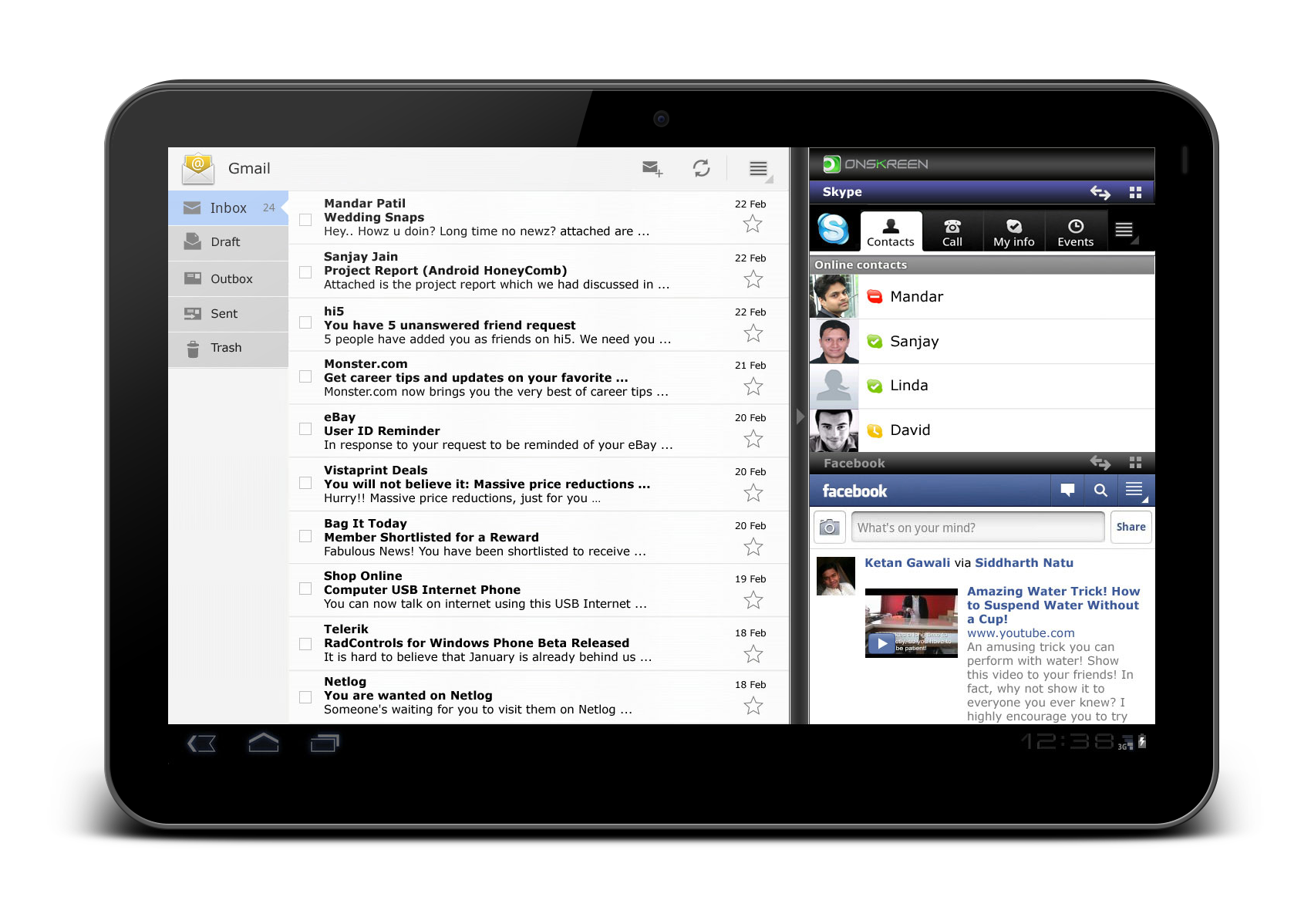
Onskreen have some very interesting development here. In their video demonstration, their 3-way Split View seems to be working pretty well. It’s a great indication that Split View Multitasking is definitely possible, although I am less favor in their way of screen splitting. App launcher within split view is a good idea, though I would prefer to make the entire multitasking feature less complex.
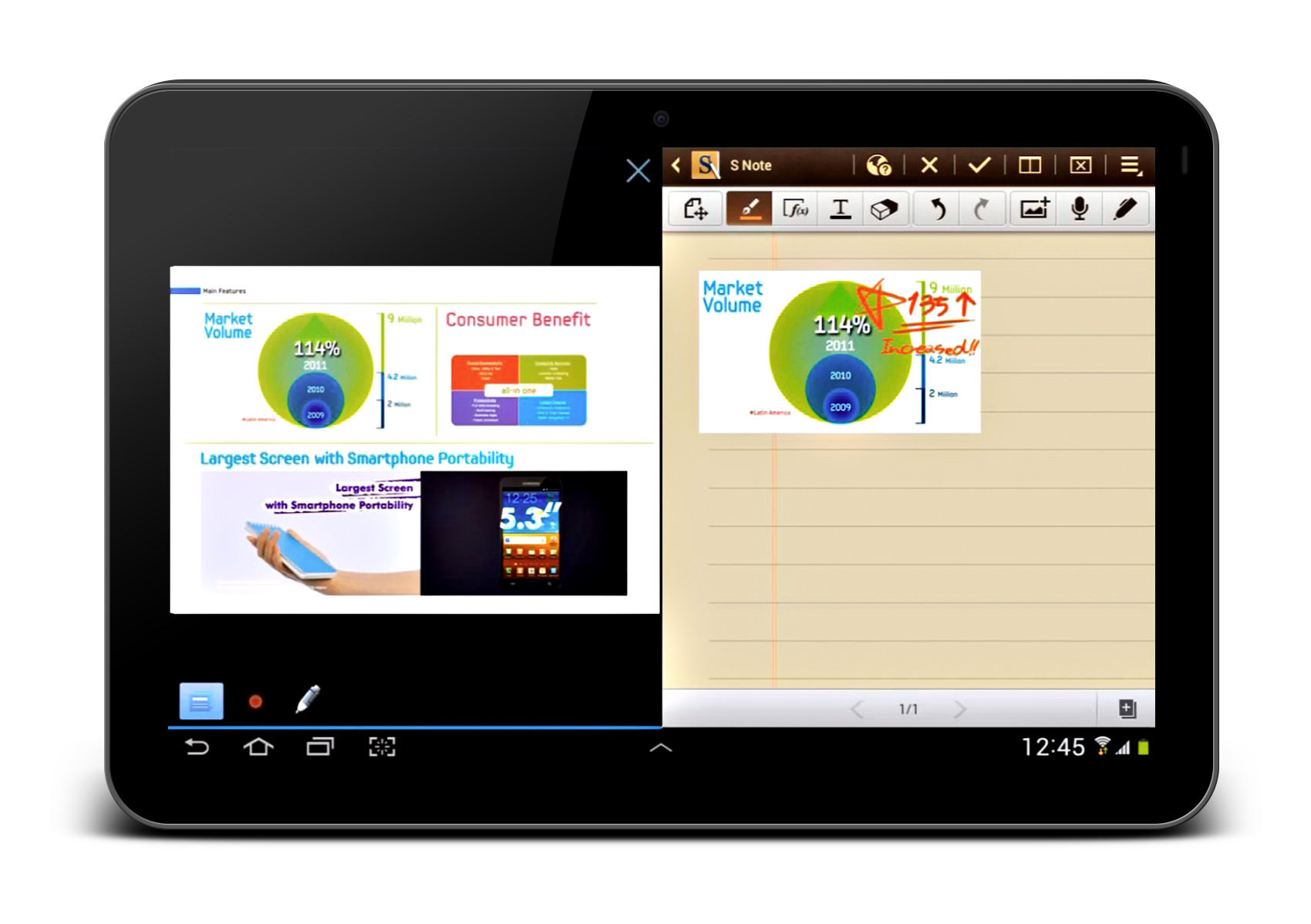
Multiscreen feature in Samsung Galaxy Note 10.1
This is a relatively new feature in Samsung Galaxy Note 10.1. It inherited a lot from their own Mini Apps, but now they decided to make them run in half of the screen, splitting the screen to run two apps in that bigger screen size. However, most likely this feature will only be available in their in-house apps, so not all Android apps are supported natively.
My Concept of Split View Multitasking
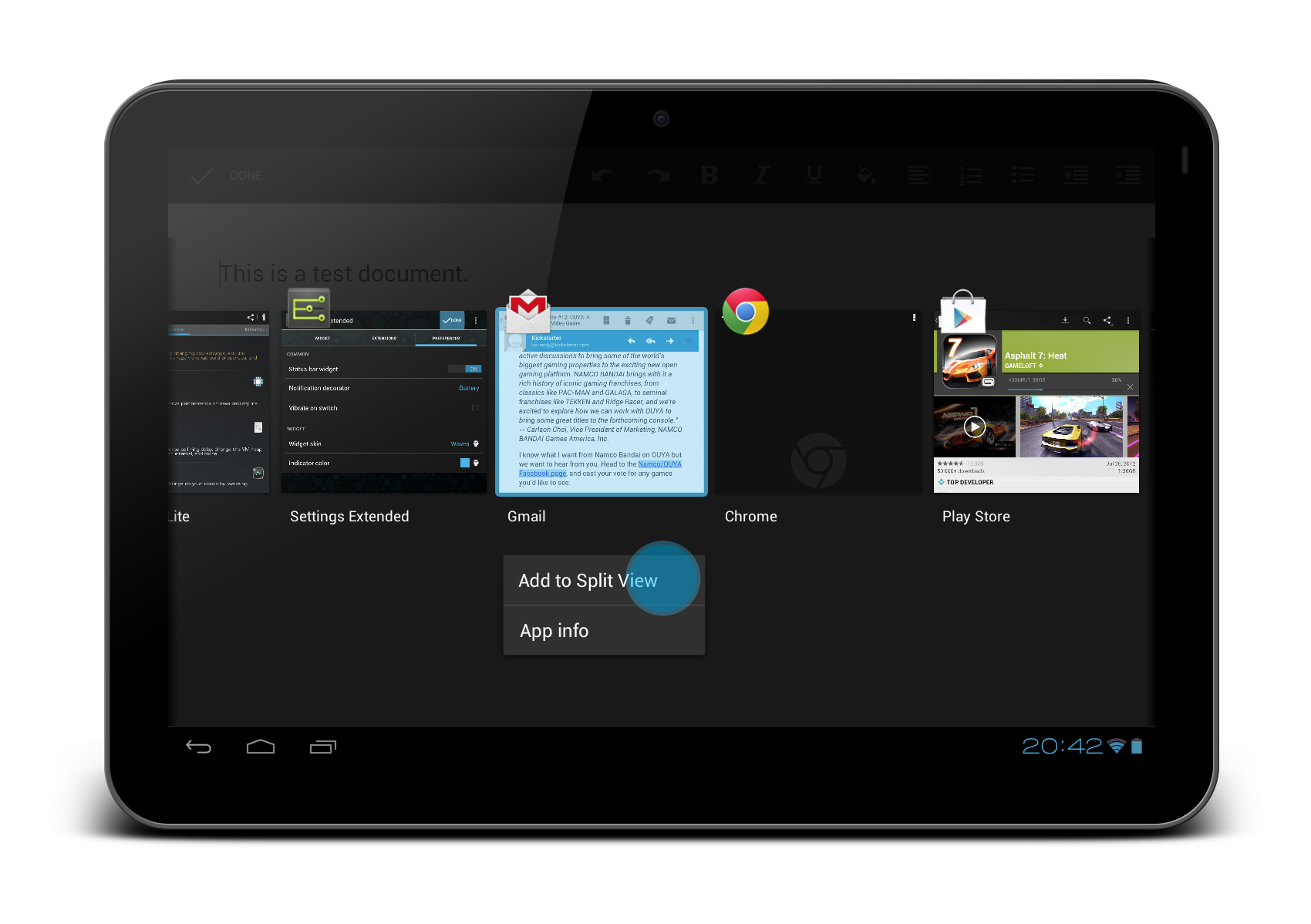
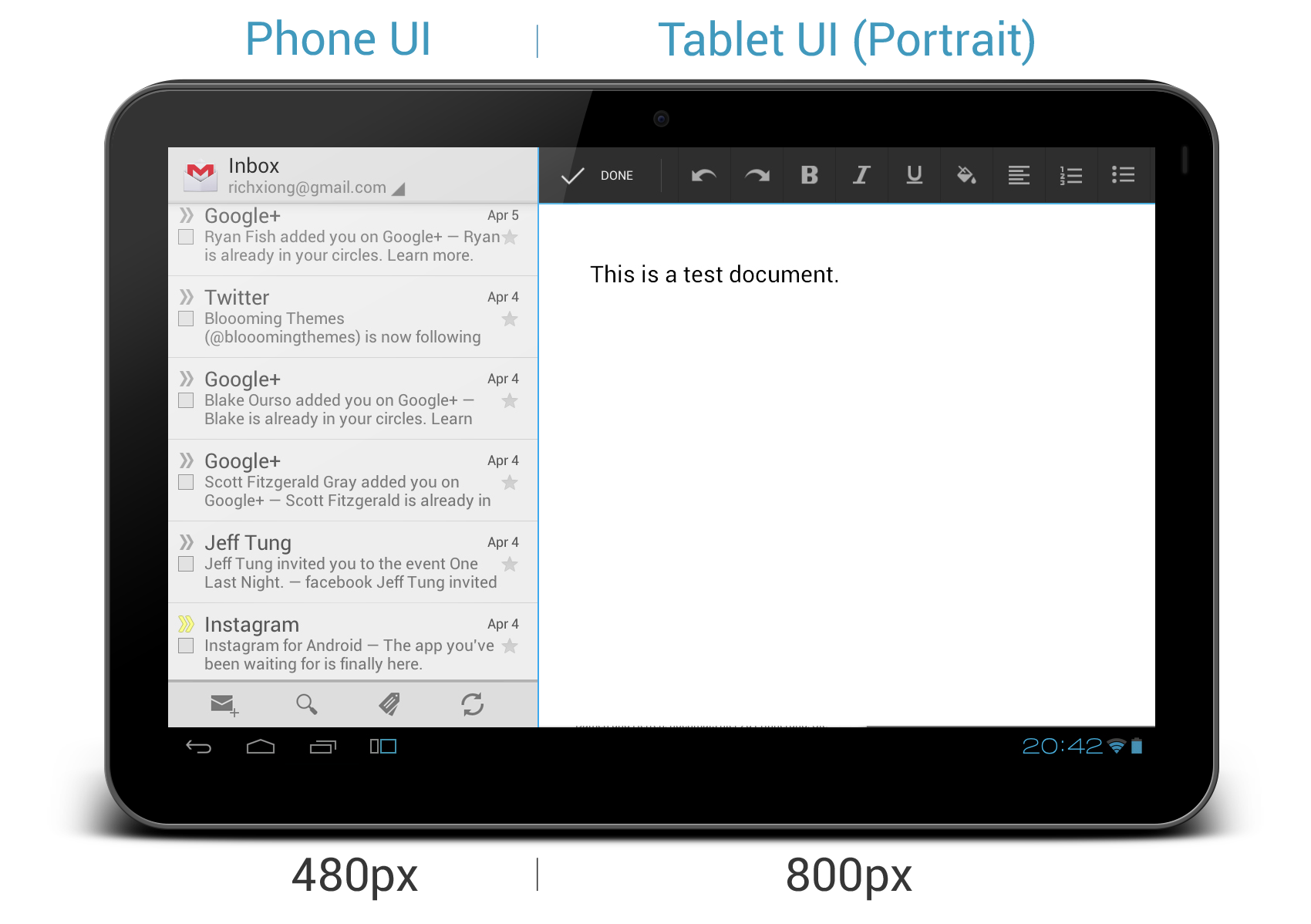
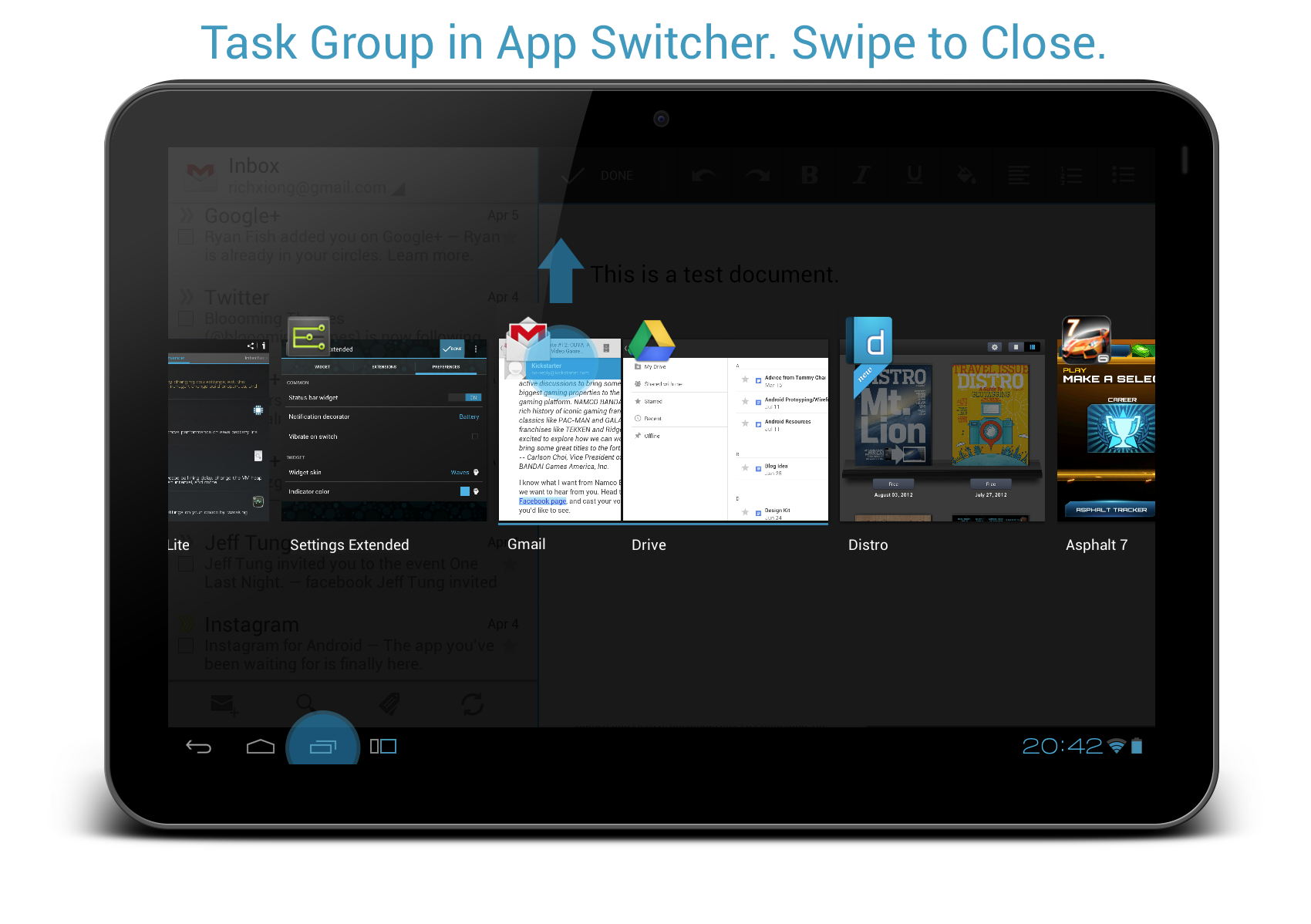
Above is my concept for the Split View Multitasking, heavily inspired by both the Snap Multitasking in Windows 8 and Onskreen Cornerstone. It is definitely not a complete idea, so suggestion/critique is always welcomed.
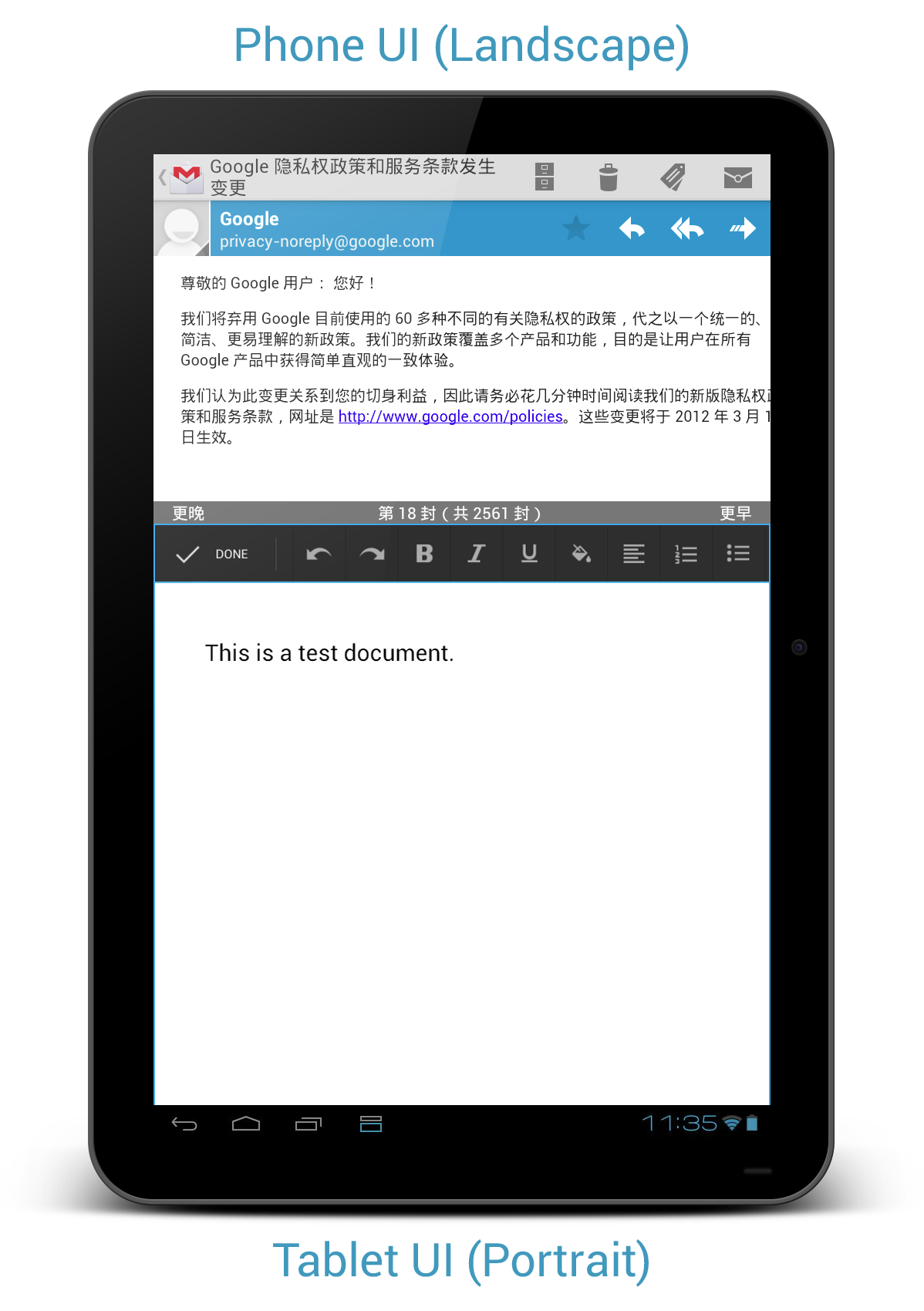
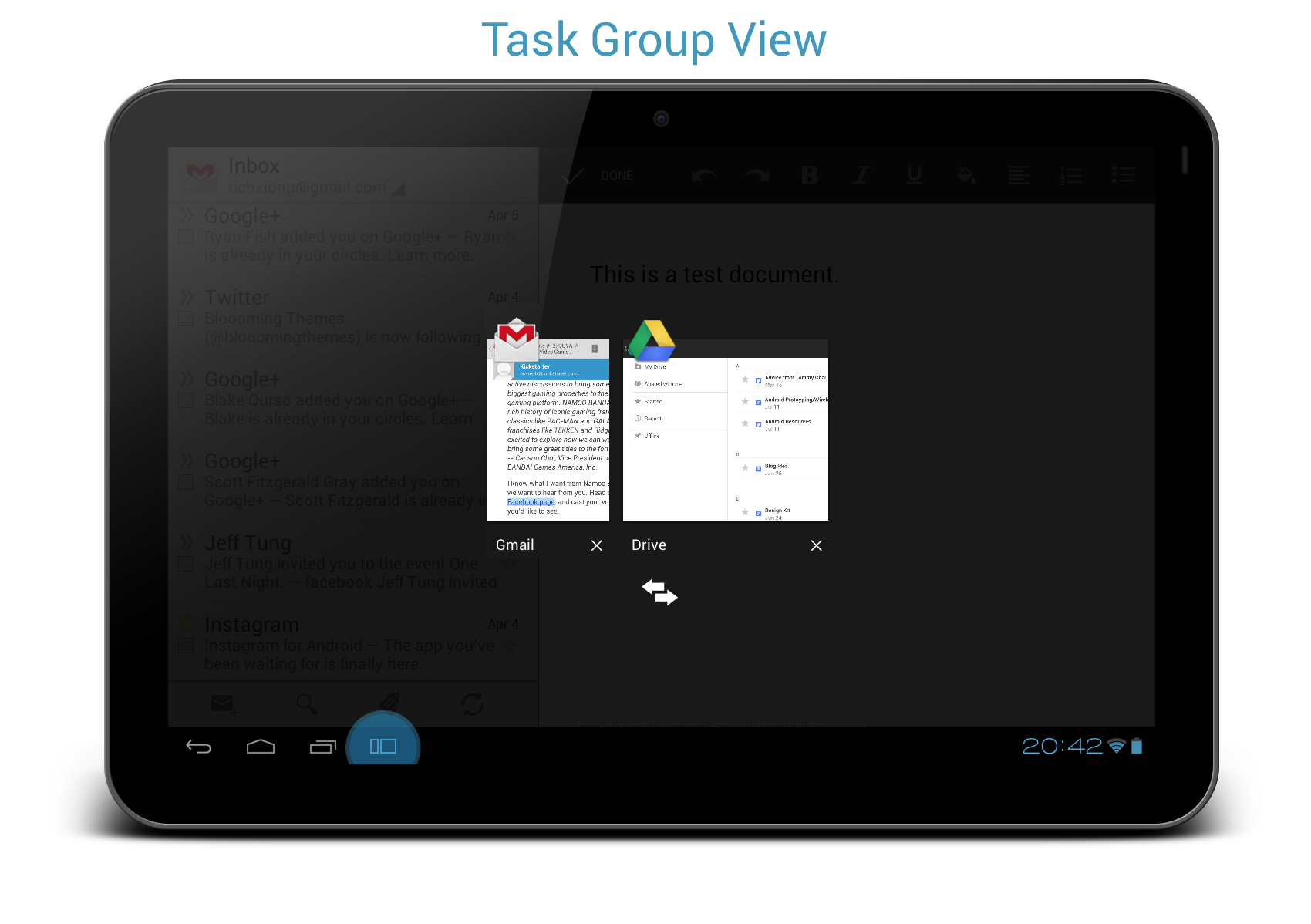
The user can initiate the Split View Multitasking by drag-and-drop the app from the app switcher list to the running app (I called it Task Grouping) or just use Add to Split View button, and there will be an indicator to know which app is in the active mode (so the system features like keyboard or Back button will correspond to the correct app). App in the Left View (which is a smaller part) will reset the UI to Phone UI even though it is running on the tablet. App in the Right View (a bigger part) will still be using Tablet UI in Portrait mode.
Consistent UX
It is designed to have a consistent User Experience. The user knows what to expect from it and it won’t have any content blocking issue like in the floating apps. No resizing option available, therefore all well-designed app should be able to run with intended design during the Split View Multitasking.
Multitasking limitation (in a good way)
My concept limits the multitasking to only two activities. Well, no doubt this limitation might be frustrating for some, but considering the processing power that a tablet device have, this might be a better option. Plus, are you really able to multitask when there are more than 2 activities in front of you?
Make full use of universal and responsive app design
One of the great advantages of Android 4.0+ is the unified platform support, which runs on both phone and tablet with specific UI, and this should be the case for all Android apps. A well-designed universal app should be able to resize based on different situation and run with proper UI (this is also important now with the release of Nexus 7 with TVdpi density), therefore supporting for Split View Multitasking should not be a huge issue.
Possible Limitations of My Concept
Universal app design
Not all apps are designed to be a universal app which can run on both phone and tablet with responsive UI.
Aspect ratio
The concept is based on the famous 10.1 tablet resolution of 1280×800 which is 16:10. There are already quite a few number of Android tablet designed with 4:3 resolution, which will not quite fit with the concept above.
Discoverability
Discoverability, as always, can be a big challenge for the designer/developer when there is a new UI Pattern/User Interaction, especially in System Level.
Conclusion
With the processing power available on mobile devices, a simple multitasking feature is definitely something we should look into – but no, floating apps is definitely not an option. With the Multiscreen feature available on the Samsung Galaxy Note 10.1 and some third-party developments on true multitasking, I hope that these are already sufficient to push for some official multitasking feature in the upcoming version of Android.
If you have anything to share regarding this topic, feel free to share and comment!
After a rant about the app screenshots in Play Store, another not-so-great UX in Play Store that I experienced for quite some time is a pretty frustrating one, and I thought this is something Android Designer/Developer should avoid at all costs.
Last Position or Top of the List?
Imagine this scenario: You are scrolling through a long list, and found something interesting in the middle of the list, so you click on that item to get more information. After that, you want to go back to the list and continue the search.
Question: When you go back to the list, do you expect to go back to the position in the list where you left off, or to the top of the list?
My answer: Definitely the position in the list where I left off.
Back to Top of the List Shouldn’t Be Automatic
But Play Store app developers don’t think so. In My Apps section, both INSTALLED and ALL tabs are having this UX mistake. Want to try yourself? Grab you device, go to Play Store > Overflow button > My Apps. Go to ALL tab, scroll down a little bit deeper, click on any app. Once you enter the details page of the app, click Back button or Up button. Now, see check the list. You are on top of your list. Frustrating, no? You can find the same UX mistake when you are searching for apps in Play Store app too.
I don’t recall any of the official Google apps giving me such frustration. I am not too sure if there is any specific reason from them to design/implement it in such a way, but I don’t see any value or advantage except causing user frustration and confusion.
Back to Top shouldn’t be automatically done until the user requested it, or at least the user should be aware of it. So, please, Android Designer/Developer, avoid this UX mistake at all costs.
This is just a minor entry for the blog about something that has been bothered me for quite some times (call me a nitpicker). Ever since the release of Galaxy Nexus with the Navigation Bar (the black bar with Back, Home and Recent apps buttons), there are more and more apps in the Google Play Store actually have it included in the screenshots. I fully understand that it’s not the developers fault – Google Developer Console actually asking for the screenshot with some standard resolution, which means that the Navigation Bar has to be included in the app screenshot without a choice.
Navigation Bar in Screenshots is Redundant
App screenshots are the most direct and quickest preview to the users for your app, therefore ideally they have to be shown on the user device which looks like it is in action. However, most of the screenshots nowadays include the Navigation Bar, which is completely redundant in my opinion. Why? Let’s have a look for some examples when I view those screenshots from Galaxy Nexus and Nexus S:
Not sure if you have the same opinion, but I don’t see the value of including that Navigation Bar in the screenshots. If the screenshot is meant for Galaxy Nexus, the Navigation Bar obviously is redundant since the device already has the Navigation Bar, and the screenshots have to resize due to the larger size. Plus it just feels awkward to view the screenshots that include Navigation Bar on devices that already have them in hardware form (e.g. Nexus S).
Workaround?
I don’t really have a solution for this since the Google Developer Console requires the screenshots to be uploaded at certain allowed sizes (320 x 480, 480 x 800, 480 x 854, 1280 x 720, 1280 x 800), which I really hope they will consider including resolution without the Navigation Bar/Combined Bar.
The only workaround that I would suggest for now is: Upload the screenshots at 480 x 800 (without the navigation bar, of course), which view perfectly on hdpi devices like Nexus S, and still looks quite OK on xhdpi devices like Galaxy Nexus.








 #androiduiux